Keywords Wizard
This wizard will lead you through the process of defining keywords for an
exposure, hazard or aggregation layer. Unlike the
keywords editor
Each impact function includes metadata that defines what rules should apply to data that will be used with that impact function. At startup, the wizard scans this metadata and uses it to define its rules.
For more general discussion on the keywords system used by InaSAFE,
see the keywords system
Invoking the wizard
You can run the wizard by clicking on the icon in the InaSAFE toolbar that looks like this:

Note
You should have at least one layer loaded and active in QGIS before attempting to launch the keywords wizard.
Once loaded the wizard will appear:
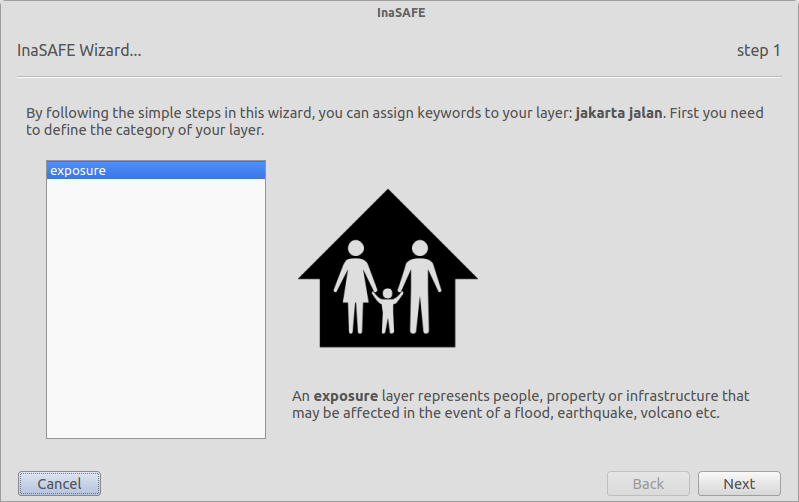
Note
If the layer already has keywords assigned to it, the wizard will default to existing keywords on each step (where applicable).
Cancelling the wizard
The wizard can be cancelled at any time by clicking the Cancel button at the bottom of the wizard. No changes will be written to the keywords file if the wizard is cancelled.
Using the wizard
To use the wizard, simply follow the prompts presented on each page of the wizard. There are three standard forms of user input expected:
1.) List selection - In this case options are provided in a list. Clicking on an item will usually display additional helpful text in the information area of the dialog.
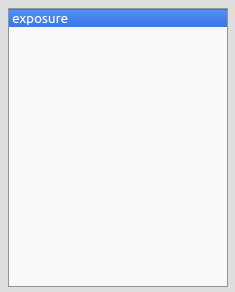
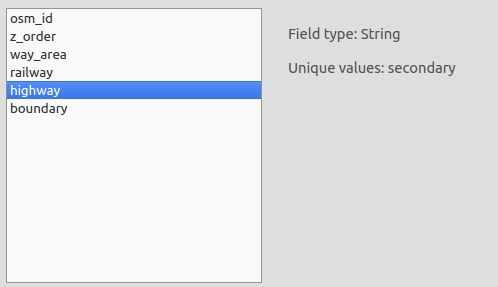
2) Field selection - Whilst it appears to look like the list selection above, in this case the list is automatically generated from the available attributes of the layer.
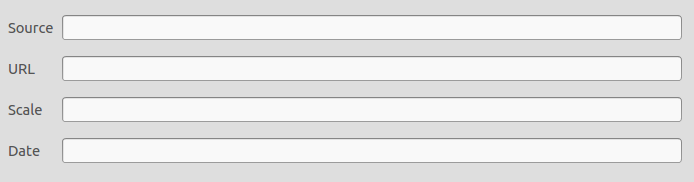
3) Free form text - In some cases you may be prompted to enter free form text in order to define some additional metadata.
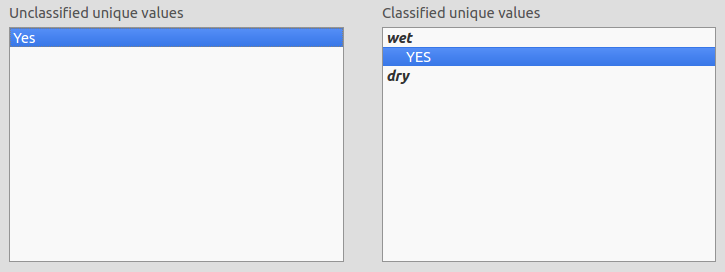
4) Drag and drop list - In this context the user should make concept mappings by dragging items from the left list (represented by unique field values from the attributes table) onto concepts in the right hand tree. For example, below we see the user mapping all polygons that have their 'floodprone' field value as 'YES' or 'yes' onto the 'wet' concept in the tree view on the right.
Completing the wizard
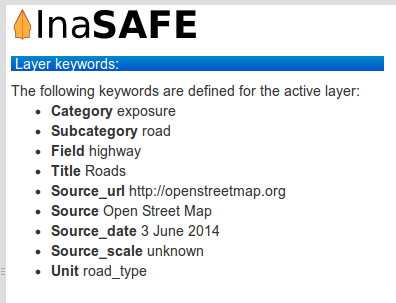
On completion of the keywords wizard, a .keywords file will be written
to disk and the keywords for the layer will be displayed in the dock area when
that layer is active in QGIS.
Note
The keywords wizard generates keywords that are not compatible with versions of InaSAFE older than 2.1.